How to disable Google search’s AI Overview for all your searches
May 23rd, 2026 at 11:47 am (Computers, Technology)
You may know that you can disable the “AI Overview” in a Google search for a single search by including “-ai” (minus ai) in your search text. But Google doesn’t give you a way to turn it off for all searches.
However, you can configure your browser’s built-in search shortcuts to do it for you. A regular Google search is something like
https://www.google.com/search?q=text
where “text” is the text you are searching for. But if you add an extra parameter (udm=14) to this search, it disables the AI overview:
https://www.google.com/search?q=text&udm=14
You can make this version your default search shortcut in Google Chrome as follows:
- Open Settings.
- Go to Search Engine -> Manage Search Engines.
- Scroll down to the “Site Search” section and click “Add”.
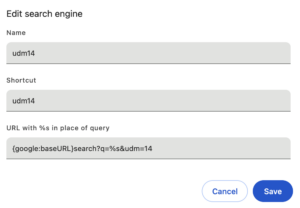
- Give this search a name (like “udm14”).
- In the “URL with %s in place of query” box, paste this:
{google:baseURL}search?q=%s&udm=14. It will look like this (mine says “Edit”; yours will say “Add”):
- Click “Save”.
- Under the three dots menu, select “Make default”.
- Try a search and enjoy no AI overview!
I have not yet figured out how to do this in Safari.